How to Pay Traffic E-Challan Online & Verify Pending Status
How to Pay Traffic E-Challan Online & Verify Pending Status. Step-by-Step Guide to Pay Traffic E-Challan Online. You can generally pay traffic challans through several online methods, depending on the regulations of your state or city. The steps provided below are a standard guide:
Step 1: Know Your Traffic Police Authority
Traffic fines are managed at a state or municipal level, so the first step is to identify the relevant traffic police department. You will need to access their official web portal for all actions.
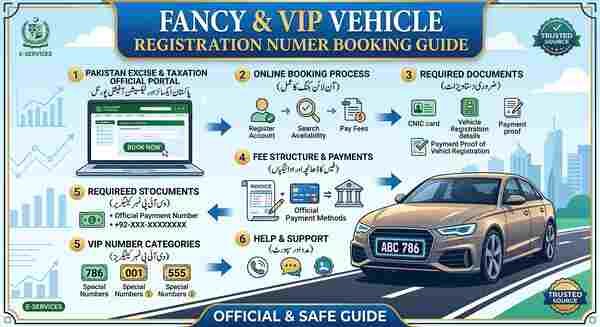
Fancy & VIP Vehicle Registration Number Booking Guide
Determine Your Zone: If you were fined in Lahore, you will use the Punjab Police/PSCA portal. For Karachi, use the Sindh Police portal. Each region has its own specific system.
Step 2: Access the Official E-Challan Portal
Once you know the authority, you must find and visit their dedicated e-challan website.
Search the Official Site: Go to a search engine and look for terms like
“[Your State] Traffic Police E-Challan”
“[Your City] E-Challan Payment Portal”
Example for Punjab: “Punjab Police E-Challan”
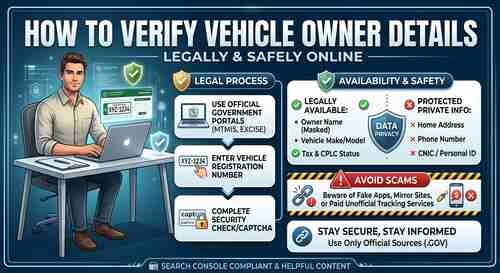
Verify the URL: This is the most crucial step. Always check that the website is official. Official government websites will generally have a domain ending in “.gov”
.govor a known governmental structure like “.punjab”.gop(for Punjab).Do not trust unofficial links or portals that pop up. A legitimate URL would look like this before proceeding.
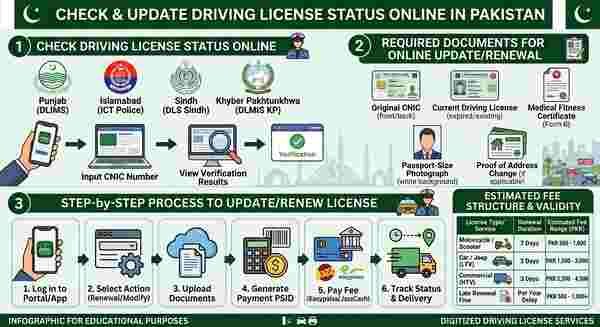
How to Check and Update Driving License Status Online
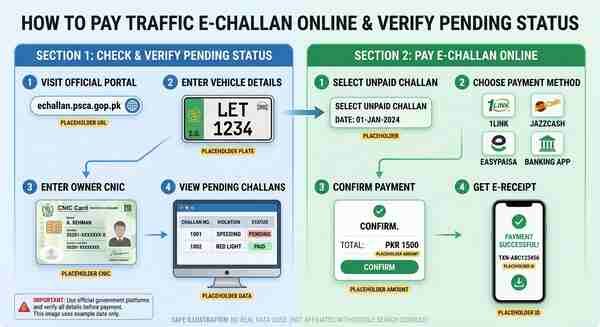
Step 3: Check/Verify Pending Status
Before you can make a payment, you need to find the specific challan. All portals require you to search first.
Login or Search: On the e-challan website, look for a section like “Online Services” or “Check Challan.“
Enter Vehicle/Owner Details: You will typically be required to enter one or more of the following:
Vehicle Registration Number: The license plate number of your car or bike.
CNIC Number: The ID card number of the vehicle’s owner.
Challan Number (Optional): If you already have the printed ticket.
Submit the Form: After entering the details, click “Submit” or “Check Status.“
The website will then retrieve a list of all pending e-challans linked to the vehicle or CNIC. You can view the details, violation type, location, and the amount of the fine. Check this carefully.
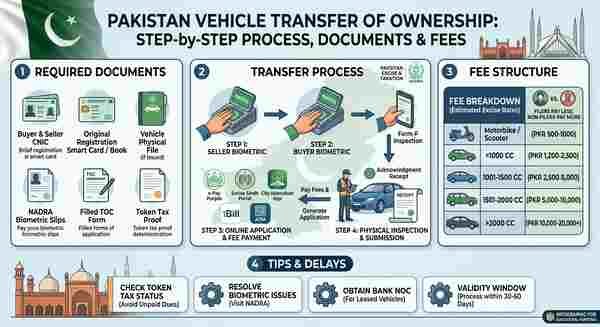
Vehicle Transfer of Ownership: Complete Process, Fee Structure, and Documents
Step 4: Initiate Online Payment
If a fine is showing, you can now proceed to pay it.
Select the Challan: On the list of pending fines, there should be a “Pay Now” or “Proceed to Payment” button next to each unpaid e-challan.
Confirm the Amount: A new screen will show the total fine amount. Ensure this matches what was listed.
Step 5: Choose a Payment Method
Most e-challan portals are integrated with secure digital payment systems. You will be redirected to a payment gateway. The typical options are:
Digital Wallets: Apps like EasyPaisa or JazzCash are very common.
Mobile Banking/Internet Banking: You can pay using your bank’s app or website. Some portals use the 1Link/1BILL system, which lets you generate a unique consumer number for payment.
Debit/Credit Card: Select the card option, enter your details, and authorize the transaction using the one-time password (OTP) sent to your registered mobile number.
Do not share your card details with anyone; only enter them on the secure, official payment page.
Step 6: Get Confirmation and E-Receipt
After the payment is successful, you will be redirected back to the traffic police portal.
View Confirmation: You should see a message saying “Payment Successful!“
Download the Receipt: An e-receipt or digital payment acknowledgment will be generated. This is your official proof of payment. Make sure to:
Download the PDF version.
Take a screenshot.
Keep it saved until you can verify that the challan status has been updated.
Step 7: Verify Status Update
The system does not always update instantly. To be sure, revisit the e-challan website (Step 2 and Step 3) after 24–48 hours. When you search your vehicle or CNIC details again, the paid challan should now show the status as “PAID” or “cleared.”
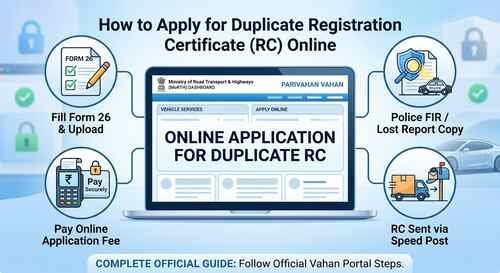
How to Apply for Duplicate Registration Certificate (RC) Online: Step-by-Step Guide
Important Security Guidelines and Reminders
Only Use Official Sources: Always access portals through trusted, verified links. Government websites will not have suspicious URLs or require payments through untraceable methods.
Avoid Unofficial Apps: Do not download third-party apps to pay challans, as these may not be secure and can expose your sensitive data.
Save Your Receipts: Always keep your e-receipt, as it serves as your only proof in case of a dispute or system error.
Report Any Issues: If you face any issues with a payment or if a paid challan still shows as pending after a few days, contact the relevant traffic police department’s helpline or website for assistance.
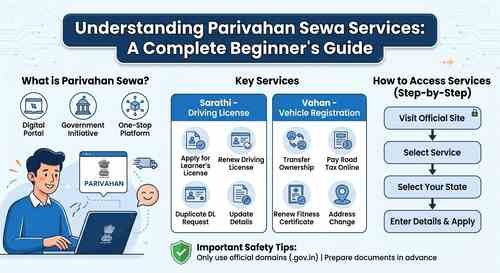
Understanding Parivahan Sewa Services: A Complete Beginner’s Guide